
With the ever-changing operating systems of macOS, the process for downloading and installing drivers can change as often as a few times a year. For the year 2025 please go ahead and follow along with the instructions below.
DISCLAIMER: To print properly from a Mac your copier needs to have Post Script. Some models have Post Script as a standard features, others have it available as an add-on. Contact us to add Post Script if your model does not have it.
Getting your machine’s IP Address
Before we begin, we will need the IP address from your copier. I have put together a short video on how to retrieve that that you can view below. Once you have your IP address, we can begin downloading and installing the print drivers.
How to video for Downloading and installing Sharp print drivers on a Mac
How to download Sharp print drivers for macOS
Head to Google and type in Sharp print drivers. The top result should be for business.sharpusa.com click this link to open up the driver’s page.
- Choose MFP from the first drop-down menu
- Choose your printer model from the second drop-down menu
- Choose Drivers and Utilities from the third drop-down menu
- click Search
- Click Download
- Choose your OS (choose the newest version if your version isn’t listed)
- Click the link that says Mac PS driver
- Scroll to the bottom of the page and click Download again.
- Open the download and run the package to install the driver.
- Open System Settings and click the printers and scanners button at the bottom of the page.
- Click Add Printer.
- Move to the IP tab and type the IP address of the printer and the top box.
- Make sure the Protocol is on LPD (IMPORTANT!)
- On the bottom half of the window, you should see the model number changed to your model. If not, click the Use box, then Select Software and search for your model.
- Click Add, then choose your copiers’ optional accessories.
How To enter User Codes for Printing on Mac OS
- Open the document you’d like to print
- Go to file, print
- Look for the menu that says Printer Options and drop that down and then choose job handling
- Move to the authentication tab and take the bullet next to user number
- Enter your user number, then click OK
- Click Print
Nationwide Sales and Service
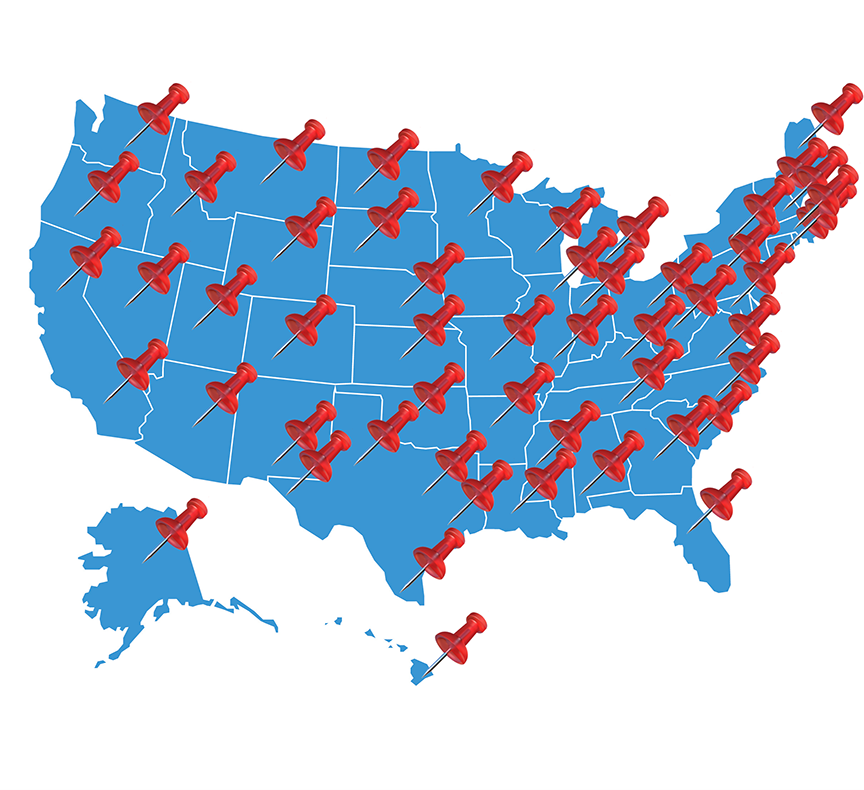
Platinum Copier Solutions is the premier Sharp copier dealer in Texas, but we can cover your office equipment needs nationwide! We work with a network of certified Sharp providers around the country to provide coverage to all 50 states. Your business has one company to contact for all sales, service and supply requests.
Perks of using one vendor company-wide:
- Consolidated billing
- Live voice answering for service dispatch and supply orders nationwide
- Uniform fleet with matching interfaces and supplies
- Standardized “clone” file so all of your equipment has identical settings (security, network settings, interface customization)
- Support tools for IT staff to manage entire fleet
- Automated meter reading collection
- Proactive toner shipment (*opt-in)
Let’s get started.