
Although fax machines are a dying transmitting medium(and we’ve been saying this for years!), we are still here to offer helpful tips for you and your fax. Out of the box the Sharp fax boards are paper conservative and have the fax confirmation page disabled. It’s a few quick clicks or button presses to activate the fax confirmation page on your Sharp MFP.
- Type the IP address of your copier into a web browser, hit enter on your keyboard. If you do not have your IP address click here for instructions on how to print it out.
- Click the System Settings tab
- Next, click the Image Send Settings button on this page
- Then click Fax Settings
- Click Condition Settings on the left menu
- Login as admin, password is admin by default
- Scroll down to find the Transaction Report Print Select Setting, change Single Sending to
- Just above that change the Original Print on Transaction Report to Print Out All Report if you would like a screenshot of the front page of your fax to be on your confirmation page
- Click Submit at the top or bottom of the page.

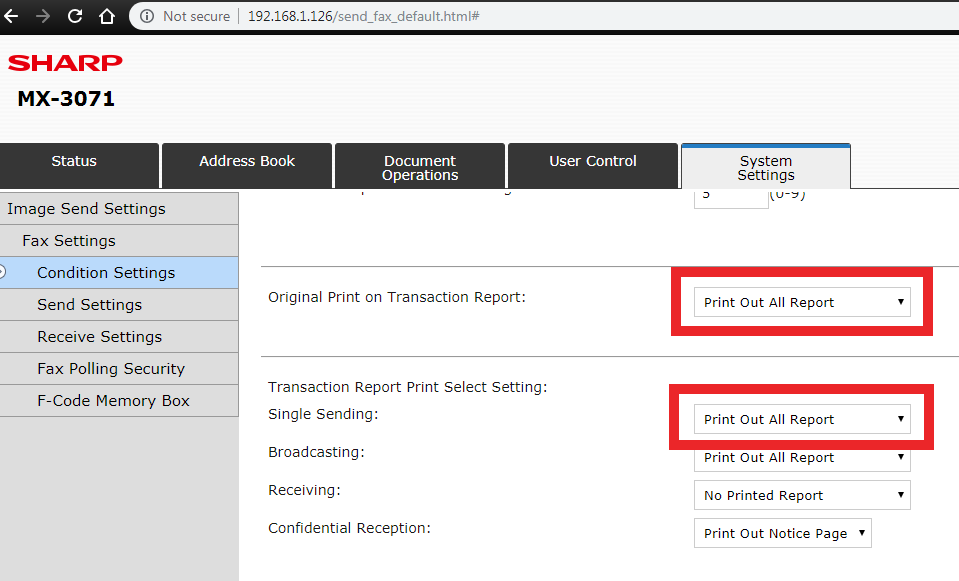
Sharp MFP Fax Confirmation Pages Sharp multifunction printers (MFPs) offer a handy fax confirmation page feature that prints a report after each fax transmission. This page typically includes details like the recipient’s number, transmission time, and status—helping users verify successful delivery or troubleshoot errors. By default, this feature is often disabled to conserve paper, but it can be easily enabled via the device’s web interface or control panel by adjusting the Transaction Report Print Select Setting. Users can choose to print confirmations for all faxes, only errors, or none at all, depending on their workflow needs.
Platinum Copier Solutions is the premier Sharp dealer in Texas! Contact us today for a free no-hassle quote!